
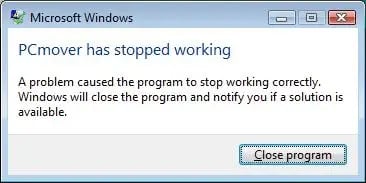
在 Windows XP 或更高版本上,嘗試啟動時會收到以下錯誤訊息 PCmover, Laplink Sync 或 Laplink Gold(此處以 PCmover 為例):
原因
當 Windows 中啟用所謂的「資料執行保護 (DEP)」時,會產生此錯誤訊息,從而阻止 Laplink 應用程式啟動。
解決方案
您可以透過以下步驟停用 DEP 或設定 DEP 以允許 Laplink 程式運行:
- 右鍵單擊“我的電腦”圖標,然後選擇“屬性”。
- 在 Windows Vista 或更高版本中,按一下「進階系統設定」連結。
- 點選“進階”選項卡。
- 點擊“性能”部分中的“設定”按鈕。
- 點選「資料執行保護」標籤。
- 請選擇以下選項之一:
要禁用DEP:
- 點擊「僅為必要的 Windows 程式和服務啟用 DEP」。
- 按一下“確定”。
- 重啟電腦。
- 重新啟動您的Laplink程式。
或者
要將 Laplink 程式加入到允許的程式清單中:
a. 點擊“新增”按鈕。
b. 使用瀏覽按鈕並選擇相應的文件:
在 32 位元系統上運行 Laplink Gold:
C:\Program Files\Laplink\Laplink Gold\Laplink.exe
在 64 位元系統上運行 Laplink Gold:
C:\Program Files (x86)\Laplink\Laplink Gold\Laplink.exe
在 32 位元系統上執行 PCmover:
C:\Program Files\Laplink\PCmover\PCmover.exe
在 64 位元系統上執行 PCmover:
C:\Program Files (x86)\Laplink\PCmover\PCmover.exe
在 32 位元系統上使用 Laplink Sync:
C:\Program Files\Laplink\Laplink Sync\LaplinkSyncWPF.exe
在 64 位元系統上運行 Laplink Sync:
C:\Program Files (x86)\Laplink\Laplink Sync\LaplinkSyncWPF.exe
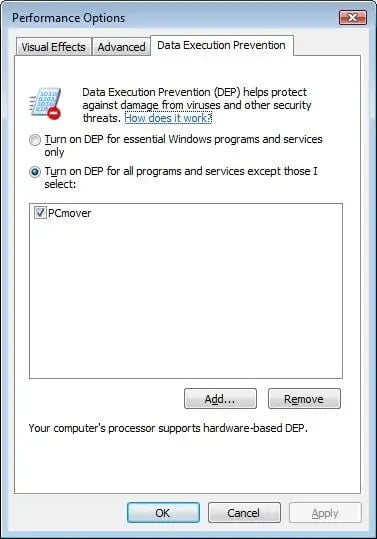
c. 按一下“確定”直到視窗關閉。
d. 重啟電腦。
e. 重新啟動您的Laplink程式。
如果問題仍然存在,您可以按以下方式全域(暫時)停用 DEP:
1. 按住 Windows 鍵。
2. 按下字母 R。
3. 在「執行」視窗中,鍵入 cmd,然後按鍵盤上的 Ctrl + Shift + Enter。
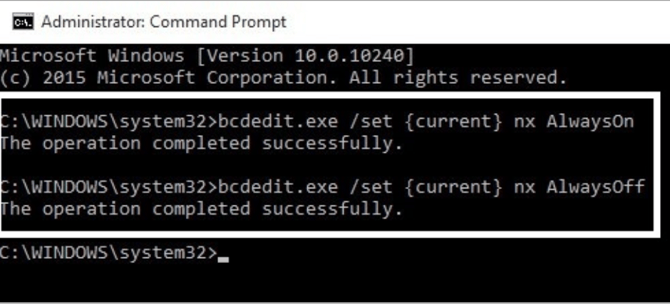
4. 命令提示字元隨即出現。輸入以下命令啟用/停用 DEP:
始終啟用DEP: bcdedit.exe /set {current} nx AlwaysOn
要始終關閉 DEP: bcdedit.exe /set {current} nx AlwaysOff
5. 重啟電腦。
稍後當您準備撤銷此變更時,請使用步驟 4 中提到的命令重新啟用 DEP。