Download and install PCmover Reconfigurator from here: https://dl.laplink.com/pcmover/reconfig/pcm_reconfig_ml.exe
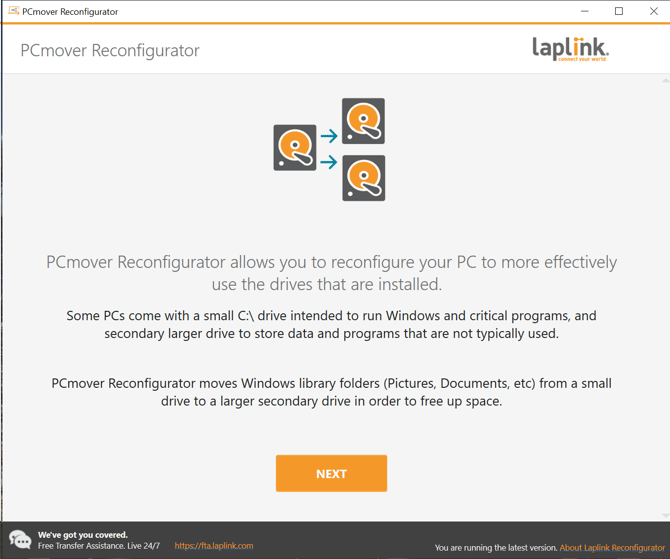
After installation is complete, Open Reconfigurator. The welcome screen will be shown, click 'Next' to proceed:
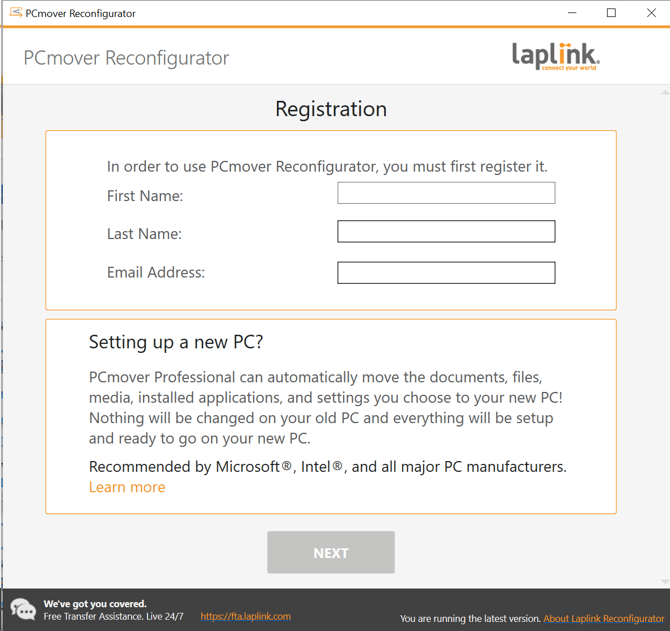
Enter your name, email and select 'Next':
Pick the libraries to move to another drive. Take note of the target drive under 'To:', along with the Destination Base which any selected libraries will be moved to. If you would like to change the 'Destination Base', select 'Change' and then browse to your preferred folder in the prompt.
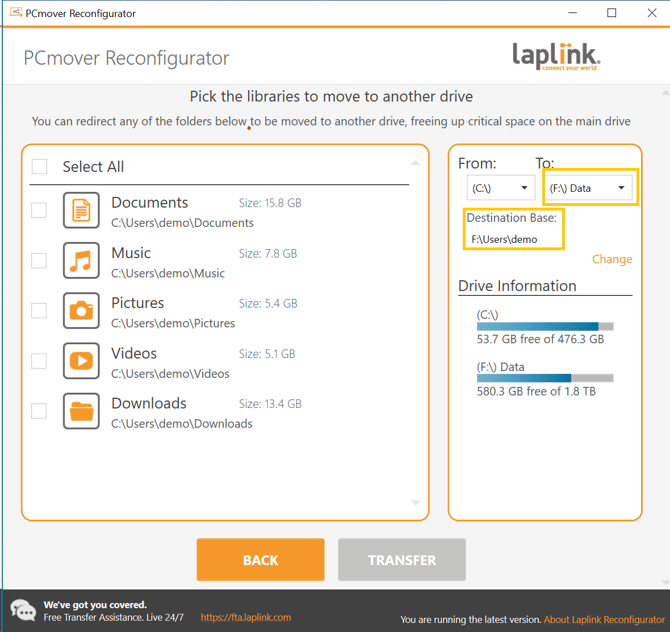
After you have confirmed which Libraries to move and the Destination Base, select 'Transfer' to proceed: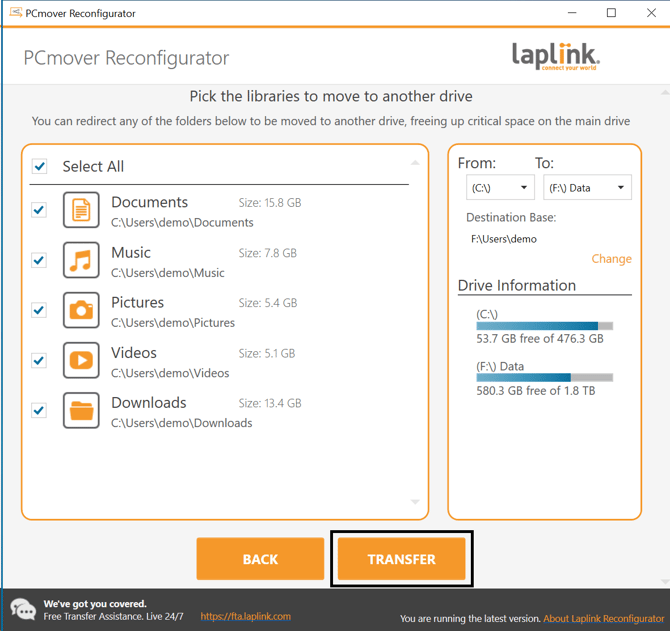
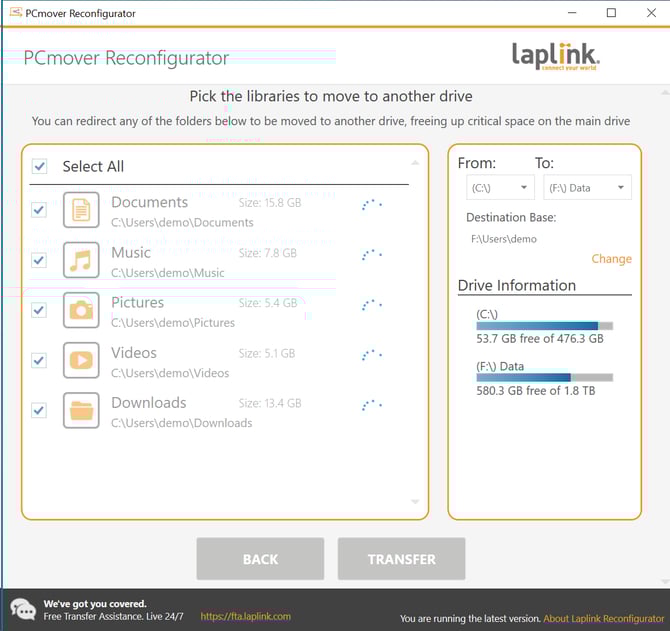
Progress indicators will show, next to each Library selected:
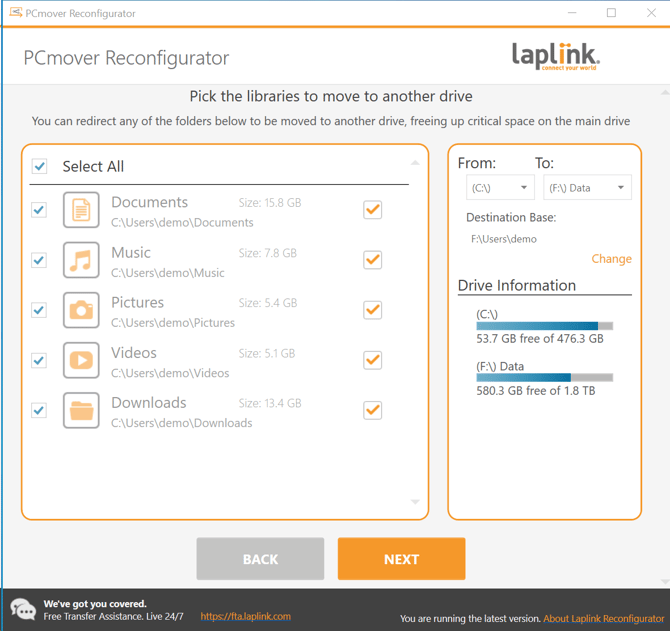
Check boxes will show when each Library has finished reconfiguration. Once all are complete, select 'Next' to continue:
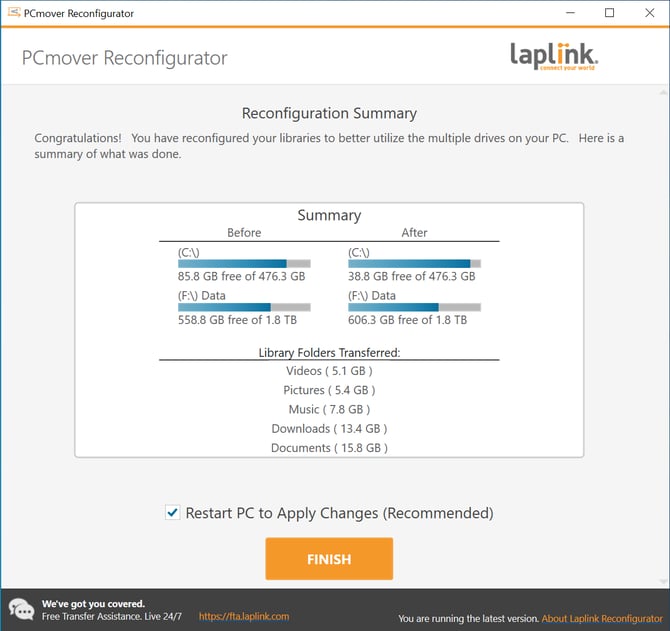
Now you can see a summary of what was done. Lastly restart your PC to apply changes, click 'Finish' to automatically do so: 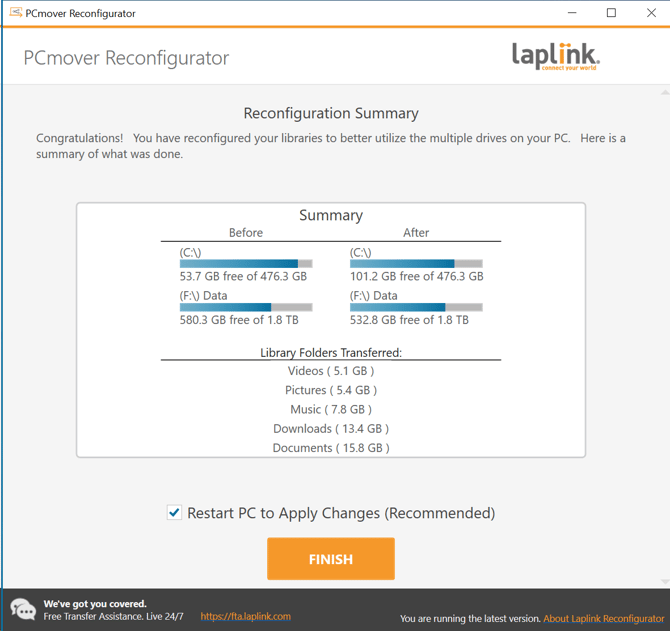
UNDO:
If you would like to 'Undo' your reconfiguration - open Reconfigurator again after completing a transfer. On the Welcome Screen, select 'Undo':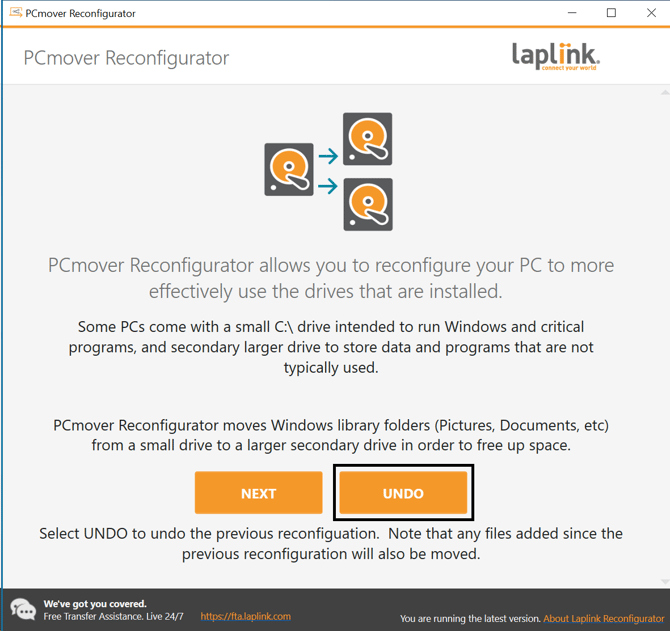
Select any/all Libraries you wish to Undo and then select 'Undo':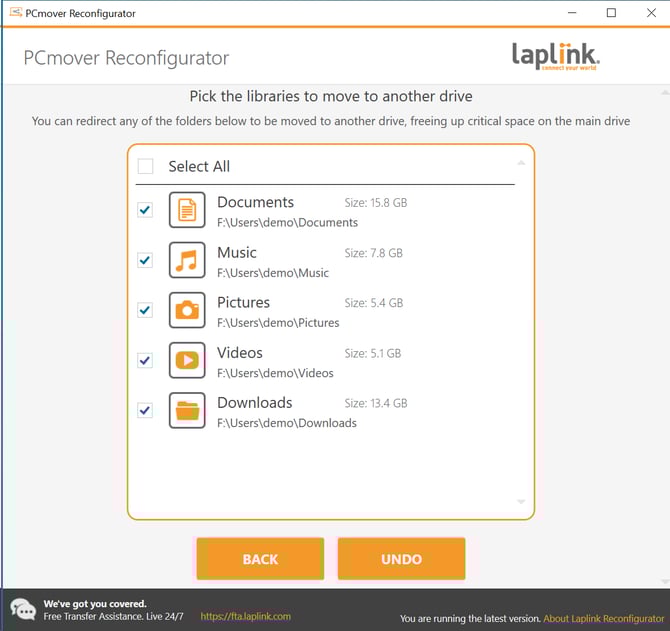
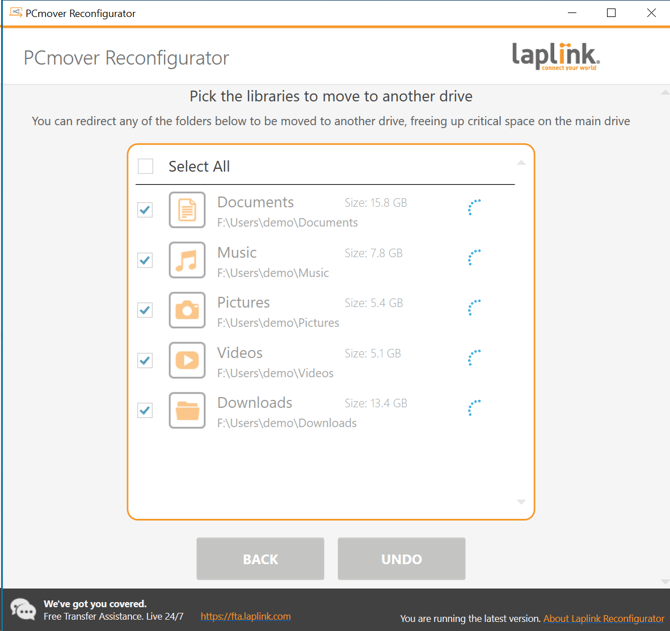
Progress indicators will show for each library performing the Undo:
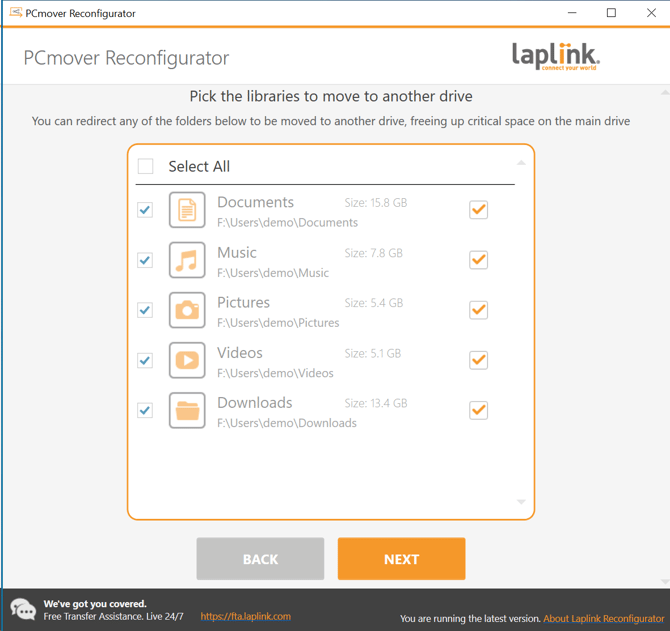
Once completed, select 'Next' to continue:
View Undo summary and click 'Finish' to restart your PC to apply changes: